
How to install Turn G-code on Windows
A step-by-step guide with pictures. Takes 3–5 minutes.
What you need
| Windows | Windows 7 SP1, 8.1, 10 or 11, 32-bit or 64-bit. |
| Screen | From 1024×768 taking system scaling into account, 1280×720 or more recommended. Use the monitor's native resolution. See "Screen and scaling" below. |
| Internet | Needed on first launch (a key for the generators is downloaded once), to activate a licence key, and at least once per paid period (once a month for the subscription) to pick up the renewal. Between connections the program works offline. |
| Rights | Installing requires administrator rights. |
Screen and scaling
The program's windows adapt to the screen: on a small one everything becomes more compact, on a big one larger, and the tool-path preview takes the full height of the window. System scaling is supported too, and the text stays sharp.
| Screen | Scale | How it looks |
|---|---|---|
| 1024×768, 1280×720 | 100% | Compact view: slightly smaller text, everything fits |
| 1366×768 | 100% | Normal view |
| 1920×1080 (Full HD) | 100–150% | Normal or large view, tool-path preview uses the full height |
| 2560×1440 (2K) | 100–150% | Larger text, big preview area |
| 3840×2160 (4K) | 150–200% | Large and sharp |
The main rule: the resolution divided by the scale should be at least 1024×768. For example, Full HD at 150% gives 1280×720, which is fine. A 1366×768 laptop at 125% gives only 1093×614, which is too tight: set it to 100%.
Everything too small? Increase the system scale (125% or 150%). Window does not fit? Lower the scale to 100%.
Where to change it: Right-click the desktop → "Display settings" → "Scale".
Restart the program after changing the scale or resolution.
Installation step by step
1Download the installer
Download the file TurnGcode-Setup-1.0.0.exe only from this website. Your browser may say "This file is not commonly downloaded" or "Couldn't download securely": choose "Keep" or "Save anyway" (see below for why).
2Run the file and confirm the Windows warning
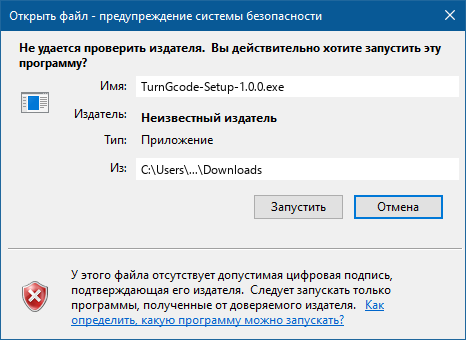
Windows will show a window about an unknown publisher. This is expected: the installer is not yet digitally signed (explained below). Click "Run".
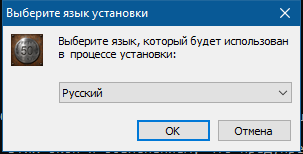
3Choose the language
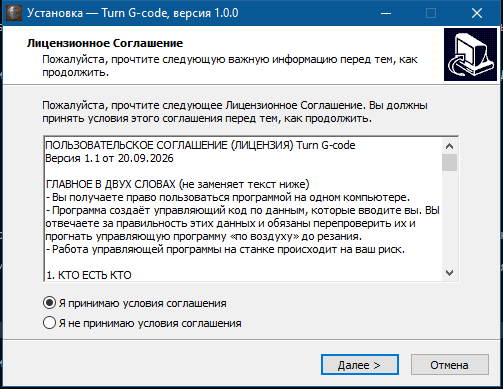
4Read and accept the agreement
Read the licence agreement (especially section 6: you are responsible for checking the entered data and must dry-run every program "in the air" before cutting). Select "I accept the agreement" and click "Next".
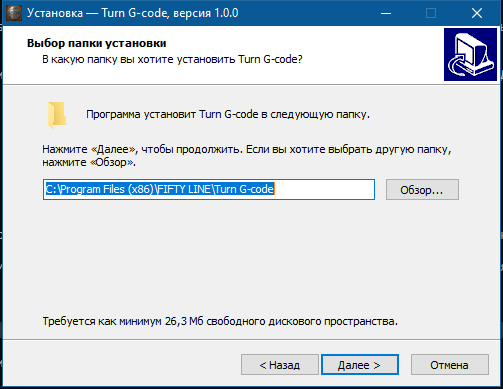
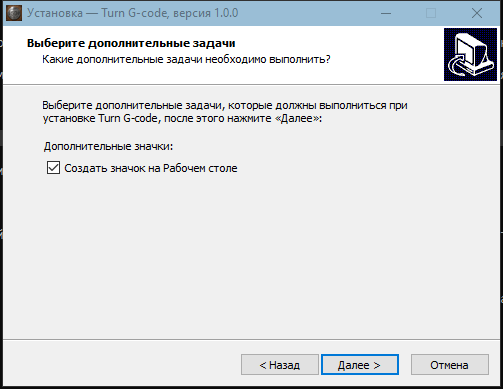
5Folder and desktop icon
Normally there is nothing to change: keep clicking "Next".
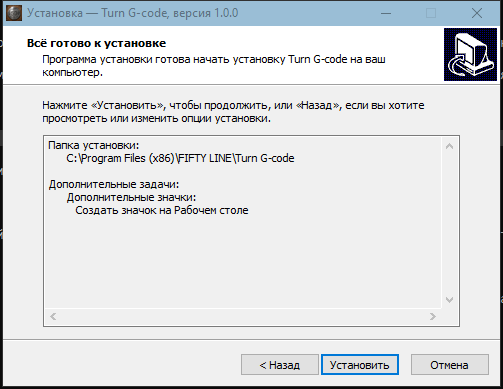
6Install
Click "Install" and wait a few seconds.
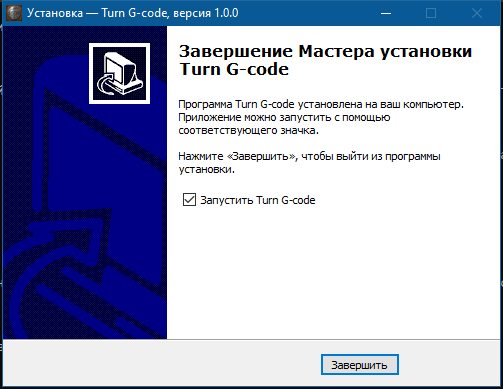
7First launch
Open Turn G-code. A 15-day trial starts. The program downloads a key for the generators once, so an internet connection is needed. To continue after the trial, enter your licence key in the "Licence key" field and click "Activate".
Why does Windows warn?
The warning appears for programs without a publisher's digital signature: Windows cannot verify who released the file. We have not bought a signing certificate yet, so Windows says "unknown publisher". This does not by itself mean the file is dangerous, but it does mean Windows could not check it. That is why you should:
- download the installer only from this website;
- compare the file's checksum (below) if you want to make sure it was not altered.
How to verify the checksum (optional)
Open PowerShell in the folder with the downloaded file (in File Explorer: File → Open Windows PowerShell) and run:
Get-FileHash .\TurnGcode-Setup-1.0.0.exe -Algorithm SHA256
The result must match this value (SHA-256 of version 1.0.0):
6c5b4f3670478819b22e189da84a0be40f14c99b76bfb7996f986d01588b3ee7
If something goes wrong
- On Windows 7 the installer asks about update KB2999226. This is a system library the program needs. Click "Yes": the installer downloads the update from Microsoft and installs it (internet required). A restart may be needed.
- The window does not fit on the screen, or everything is too small. Change the Windows scale (see "Screen and scaling" above) and restart the program. A screen of at least 1024×768, taking scaling into account, is required.
- The program says an internet connection is needed. A connection is required on first launch or after activating a key; later it can work offline; to pick up a subscription renewal, connect at least once a month.
- Other questions: see the Contacts page.
How to uninstall
Start → Control Panel → Programs and Features → Turn G-code → Uninstall. Your licence and settings stay in your profile folder (.turnmaster) and are not removed with the program.